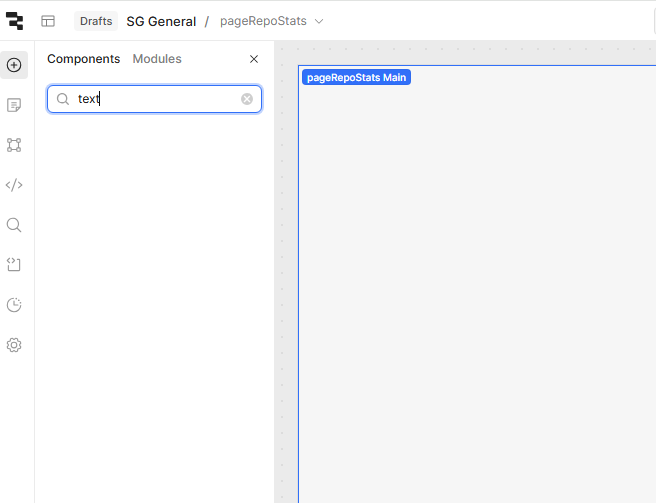
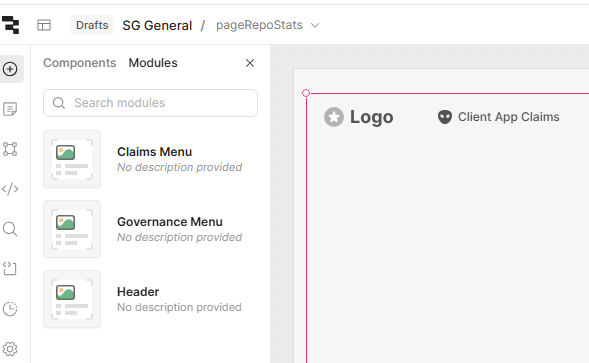
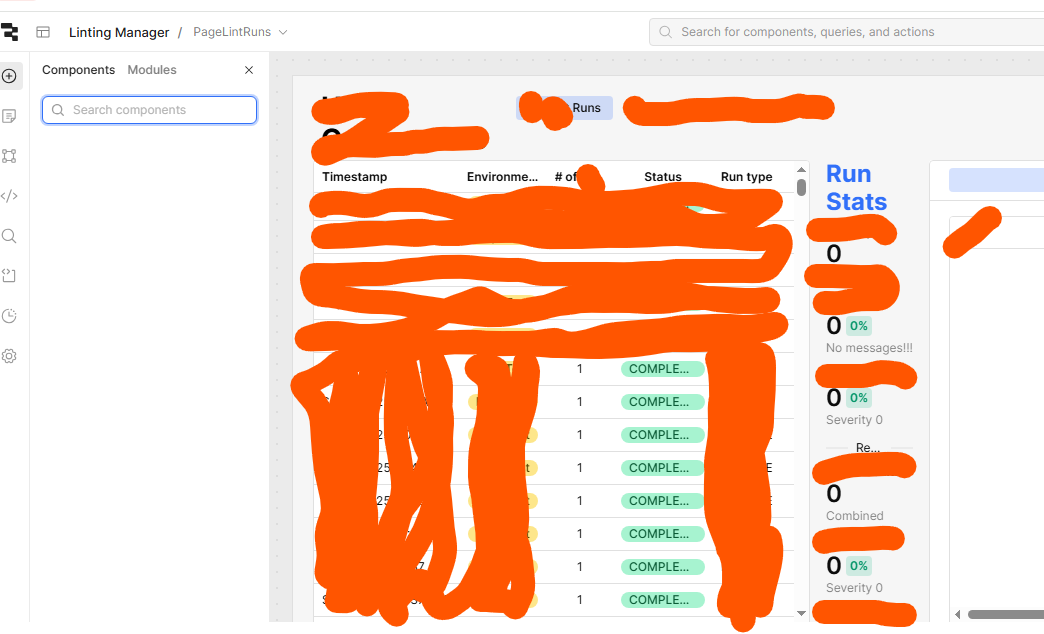
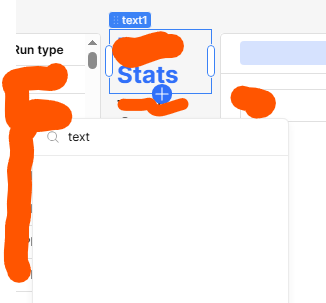
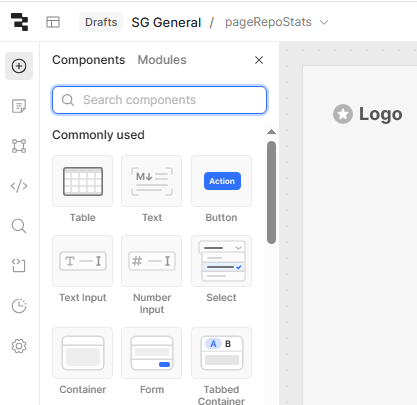
The simplest explanation is that your browser has a corrupted or outdated version of the editor's assets in its cache. A hard refresh forces the browser to re-download everything from the server.
On Windows/Linux: Press Ctrl+Shift+R
On macOS: Press Cmd+Shift+R
2. Check the Browser's Developer Console for Errors
This is the most crucial step for diagnosing the issue. If components fail to load, there will almost certainly be error messages logged in the console.
How to Open: Right-click anywhere on the page, select "Inspect" or "Inspect Element", and then navigate to the "Console" tab in the panel that appears. You can also typically press the F12 key.
What to Look For: Look for any text highlighted in red. Error messages related to 404 (Not Found), Failed to fetch, CORS policy, or other JavaScript errors could point directly to the cause. A screenshot of these errors would be invaluable for further troubleshooting.
3. Check the Network Tab and for Blocked Requests
It's possible that a network security rule, proxy, VPN, or firewall is blocking the specific request that fetches the component list.
How to Check: In the same developer tools panel, go to the "Network" tab. Refresh the page and look for any requests that are highlighted in red or have a status of failed, blocked, or a 4xx/5xx error code (e.g., 403 Forbidden).
4. Isolate Browser Issues
To rule out problems with your browser's configuration, extensions, or cache, please try the following:
Incognito/Private Mode: Open your Retool application in a new incognito (Chrome) or private (Firefox/Safari) window. This mode typically disables extensions and uses a fresh cache. If the components appear here, the issue is with an extension or your browser's cache on your main profile.
Try a Different Browser: If you are using Chrome, try Firefox, or vice versa. This helps determine if the issue is specific to one browser.
5. Check the Official Retool Status Page
While less likely to cause such a specific issue, it's always worth checking if Retool is experiencing a partial outage that could affect editor services.
Did ABSOLUTELY nothing except shutting down the PC at night and starting it again around noon today. Now I thought to check on this thread, saw your reply and thought to check so open/login to Retool and it shows everything nicely!
Hey @SSG_HM, glad to hear everything is showing up nicely now. Please keep us posted if this happens again, and thank you @turps808 for jumping in so quickly to help!