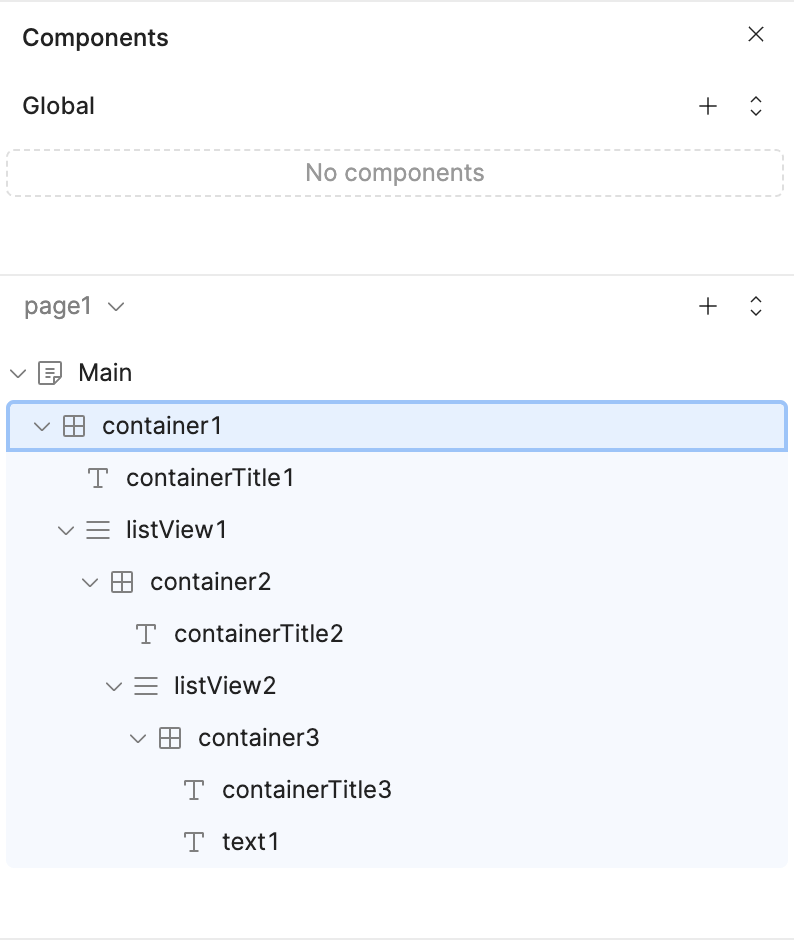
to recursively expand all content in a nested double nested listview structure
have one scroll bar for the page
Issue:
the auto settings on height for the components still create truncated results and have multiple scroll bars on the page making it hard to read and navigate
Steps I've taken to troubleshoot:
attempted to set all inner components to auto height and the outer to most container to scroll
wrote custom CSS to override the settings of each of the components to remove the scroll bar and override max height settings of the components
wrote a javascript to explicitly set the component settings on page load.
Additional info: (Cloud or Self-hosted, Screenshots)
components:
Hello @ky_RetoolCom Welcome to the Retool Community,
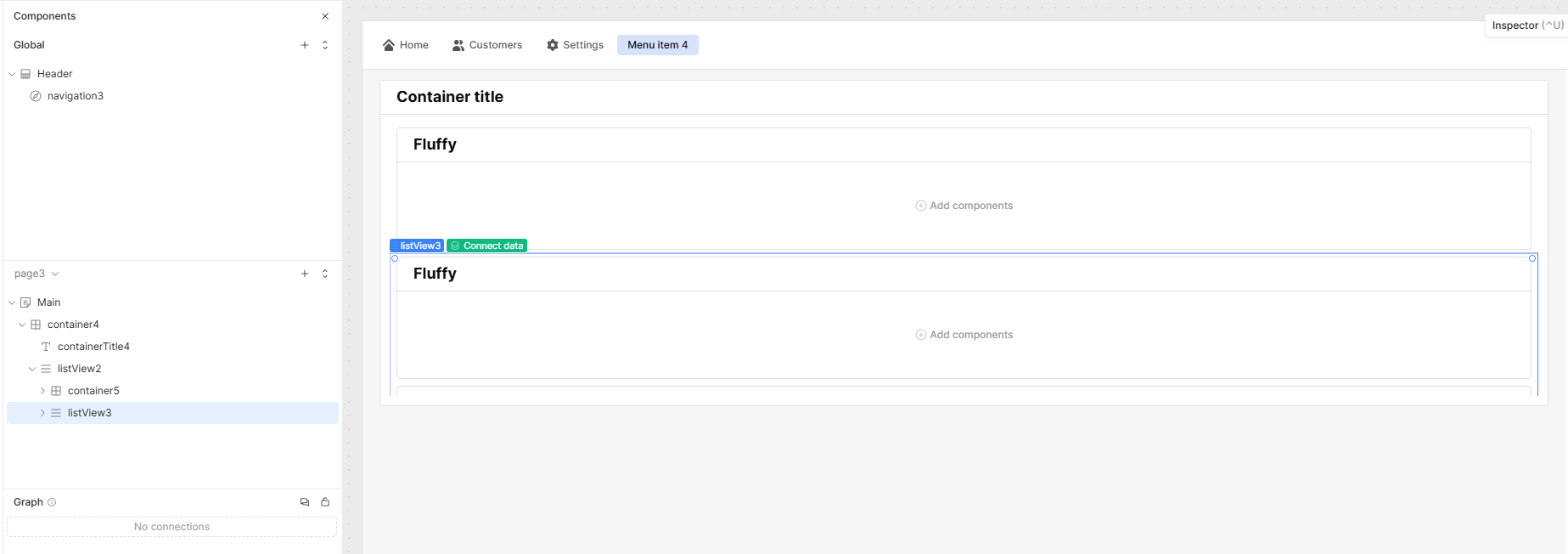
I’ve applied the CSS to remove the scrollbar in my app using custom CSS, and it’s working as expected (see screenshot).
Please let me know if you have any questions or need further details.
Hi @ky_RetoolCom, just a warning that we don't generally recommend using a class selector like _container_mafzi_1, since these are generated class names and have potential to change during updates.
However, if the previous suggestion didn't work, I tried this out and was able to make it work using the following custom css:
An alternative solution to not affect all your list views, would be to name your list views something more specific, like outerListView and innerListView, and then you can use the following css which targets only listviews that have the case-sensitive word ListView in their name. (Note: this also is not guaranteed to work after every new release, but technically no custom css is)
My goal:
RE: Multiple scroll bars in nested listviews - #4 by Mike_M
The solution i had previously was working for a bit and now more recently it is now. I want each listview to expand fully so the page only has one scroll bar on it
Issue:
Component Strucutre on a test multi-page app:
listView1: outter most list view
-container1: inside the listview for each outter element
-listView2: inner listview inside of container1
-container2: inside the listView2
-table1: inside of container2
currently each listview has a scrollbar, the container has a scrollbar.
I tried ths css:
[data-testid*=ListView] {
    overflow: visible !important;
  }
yet that just cuts the sections short which is useless for seeing all the data.
each listview and container is set to auto height so should expand some.
I tried to target the element names as well directly:
/* Target listView1, listView2, container1, and container 2 /
[data-testid="listView1"], [id*="listView1"],
[data-testid*="listView2"], [id*="listView2"],
[data-testid*="container1"], [id*="container1"],
/* handle both “container2” and “container 2” just in case /
[data-testid="container2"], [id*="container2"],
[data-testid*="container 2"], [id*="container 2"] {
overflow: visible !important;
max-height: none !important;
height: auto !important;
}
Hi @ky_RetoolCom, yeah this is why in general we don't recommend using class names in your custom css, because they occasionally change after certain updates. Regardless, I was able to get this to work:
I did some more testing and this actually also worked for me, even if I didn't change the names of the list views (so it also applies to all list views):