Here are some common issues we are seeing when users try to integrate Intercom into their apps (Retool docs here)
-
Ensure the end user you are testing with has USE permission for the app you are testing the bauble on only. Keep in mind that the All Users group may overwrite other user groups, more info on this here.
-
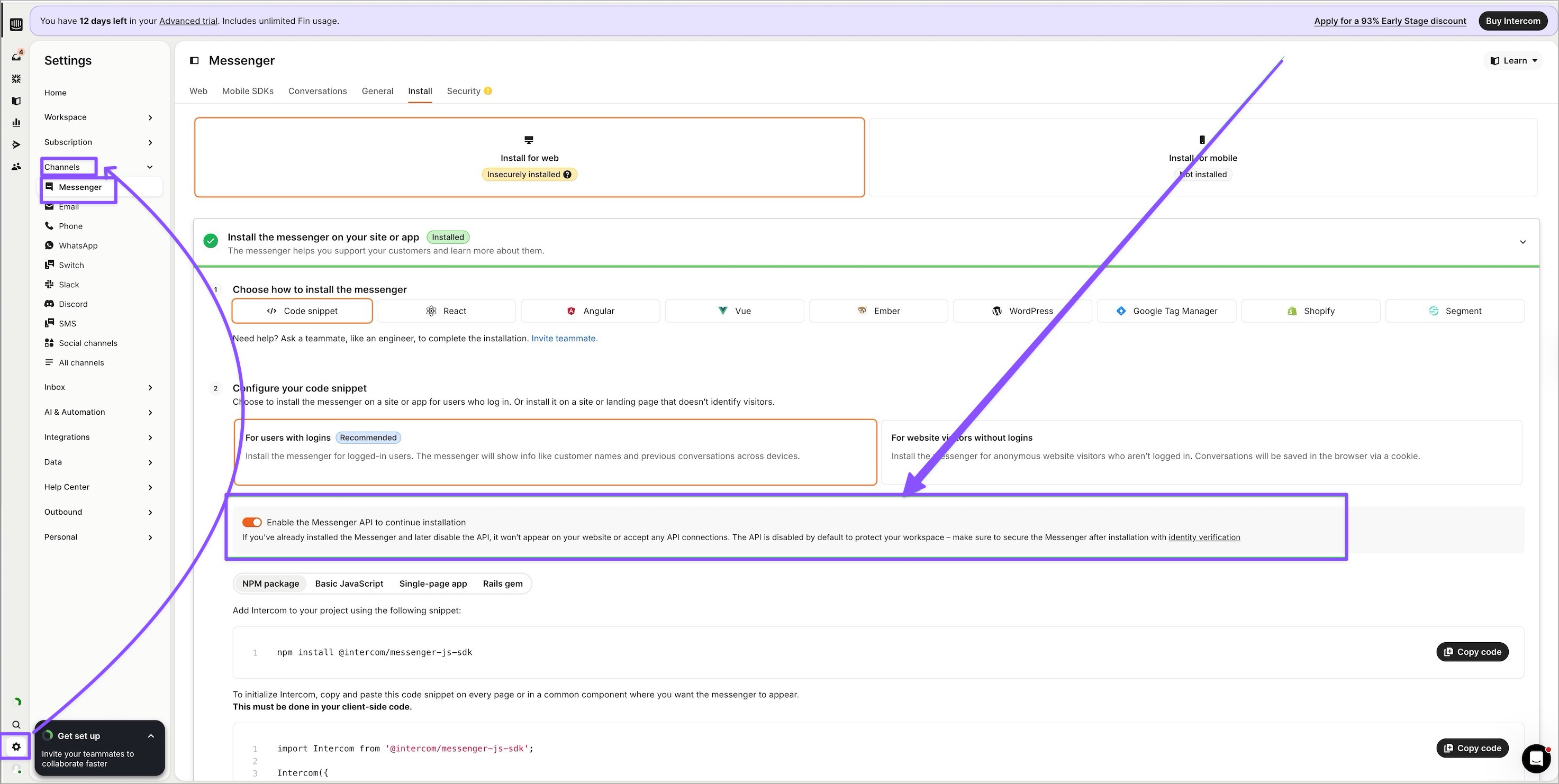
Ensure that you have Enable the Messenger API to continue installation enabled in Intercom's Settings-> Channels -> Messenger -> Install tab, like below?
-
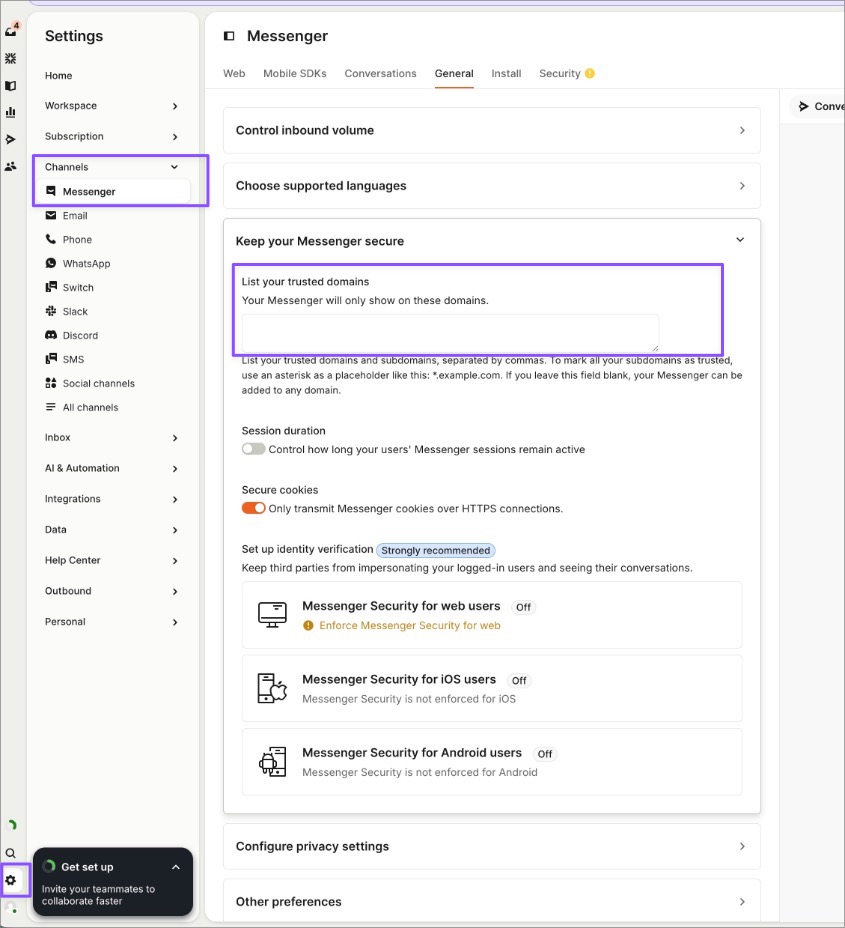
See if you have Retool set in your allowListed in Intercom's settings -> channels -> messenger -> general tab? This bit should be either blank (no exclusions of domains, or your Retool instance's url should be included)
-
Check that the integration works outside or Retool - If it doesn't it's likely an issue with your Intercom set-up
-
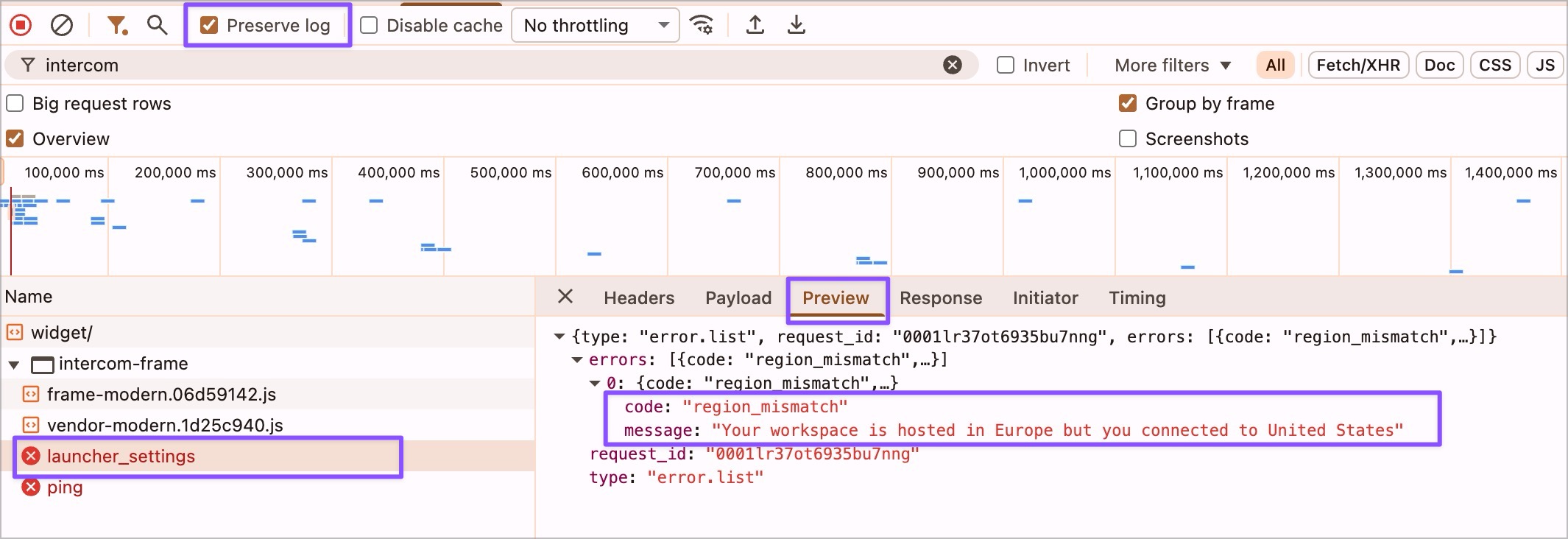
[Note the following was resolved in v 3.366.0 onwards and a region dropdown is now available in the Retool Intercom Integration setup] We have seen issues with Intercom organisations that are hosted in .eu or .au domains - Check if this error shows in your network requests when you refresh the app (please ensure you have preserve logs enabled, like below)
We can currently integrate Intercom apps from US URLs, app.intercom.com, and if your app sits in app.eu.intercom.com or app.eu.intercom.com you may get this error. We are working on a fix for this (internal request id GOV-5919). -
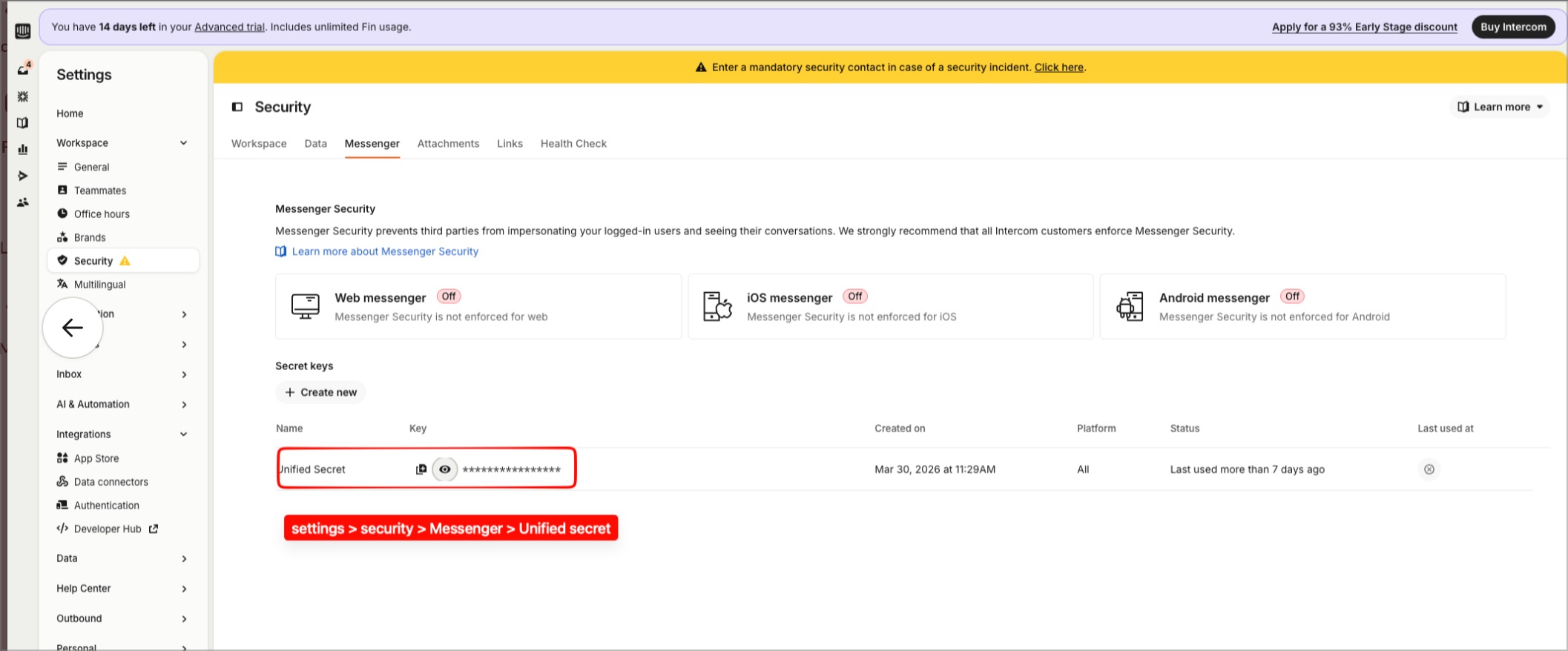
Ensure your Intercom JWT Authentication Key you set in the Retool UI is a Intercom Secret Key that is generated in Intercom's settings -> workspace -> security -> messenger -> unified secret, like outlined [here] - Note you can note use Intercom API keys (from the Developer Hub or so) here (Set up Identity Verification for web and mobile [Deprecated] | Intercom Help)
-
Ensure in your Retool set up UI you have
Intercom App IDandIntercom JWT Authentication Keyand thatIntercom Identity Verification Key (DEPRECATED)is blank. -
As always ensure you meet the requirements set in the docs also.
If you continue having issues after going through the above we recommend the usual:
- test in an incognito window to ensure extensions or cache aren't causing issues
- check your network requests (preserve log enabled) and refresh the page to see if any requests (Filter down to requests including
Intercom) throw any errors or give you any insight into what may be going wrong - ensure in the settings-> branding UI set up in Retool that there are no white spaces in the app id or token
- when in doubt always check the official Retool docs, linked up above
Note that you may see the following error in your Debug -> console logs [Intercom] The App ID in your code snippet has not been set. Set it to your App ID found in settings to complete installation: https://app.intercom.com/a/apps/_/settings/webPreformatted text - this may be a red herring as this sometimes shows when you successfully integrate the Intercom app. So take this error with a grain of salt.