A reviewer opens Lobby walkthrough and starts a note about the marker at 2.4 seconds. Before saving, they click Lobby walkthrough v2 in the queue. If the write reads the Table’s current selection, the note goes on v2. Capture the clip ID when the note editor opens and use that same ID for the preview and the write.
This example uses a Retool classic app and two fictional clips. Short synthetic stand-ins, such as a clip made with VO4 AI from images you can share, are enough to exercise the workflow. Give each clip a visible difference, such as a marker on opposite sides of the frame.
Give each clip a stable ID
Use a Table named clipsTable with single row selection. Set its primary key to clip_id. Each source record contains clip_id, title, and video_url. Put the original lobby clip on C-104 and v2 on C-108. Give each revision its own ID, even if the titles match.
Use a separate clip_notes table so a clip can have multiple notes. Give each note an automatically generated primary key, a required clip_id that references the clip, a required note_text, and a nullable numeric time_seconds. The example stores the time as seconds from the beginning of the clip.
Keep the editor on the clip it opened with
Create a temporary variable called noteDraft with a default value of null. Place the Video component and two Text Input components in a Container. Set the Container’s Hidden property to {{ !noteDraft.value }} and name the inputs noteInput and secondsInput. Wire an Add note button beside the table to this JavaScript query.
if (noteDraft.value) return;

const clip = clipsTable.selectedSourceRow;
if (!clip?.clip_id) return;

await noteInput.setValue("");
await secondsInput.setValue("");
await noteDraft.setValue({
  clipId: clip.clip_id,
  title: clip.title,
  videoUrl: clip.video_url
});
Show the draft title and clip ID at the top of the panel. Set the Video component’s source to {{ noteDraft.value?.videoUrl ?? null }}. Keep the table available for browsing and disable Add note while a draft is open. The reviewer can see which clip owns the draft even when a different row is highlighted.
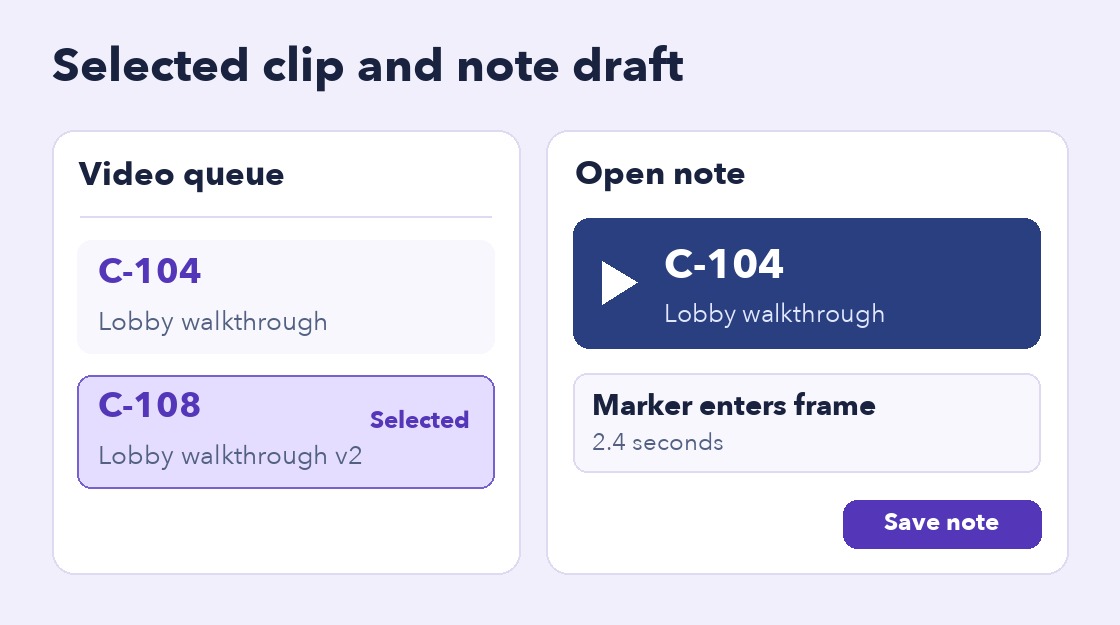
The selected row can change while the note editor keeps the clip it opened with.
Save the note with the captured ID
Create a manually triggered database query named insertClipNote in GUI mode. Select Insert a record on clip_notes and use {{ record }} as the Changeset object. The Save note button should run this JavaScript query, which supplies record through additionalScope.
const draft = noteDraft.value;
const noteText = (noteInput.value ?? "").trim();
const rawSeconds = (secondsInput.value ?? "").trim();
const seconds = rawSeconds === "" ? null : Number(rawSeconds);

if (!draft?.clipId || !noteText) {
  throw new Error("Select a clip and enter a note.");
}
if (seconds !== null && (!Number.isFinite(seconds) || seconds < 0)) {
  throw new Error("Enter a nonnegative time in seconds, or leave it blank.");
}

await insertClipNote.trigger({
  additionalScope: {
    record: {
      clip_id: draft.clipId,
      note_text: noteText,
      time_seconds: seconds
    }
  }
});
Disable Save note and Cancel while the save is running. Clear noteDraft in the insert query’s success handler, and leave the draft open on failure so the reviewer can correct or retry it. Use the same variable reset for Cancel when no write is in progress. Apply the usual database access rules to writes in a shared app. The draft variable only controls which clip the panel displays.
Verify the saved clip ID
Use a test data source. Open a note for C-104, type Marker enters frame at 2.4, and select C-108 before saving. The panel should keep playing the C-104 preview, and the inserted record should contain clip_id = C-104 and time_seconds = 2.4.
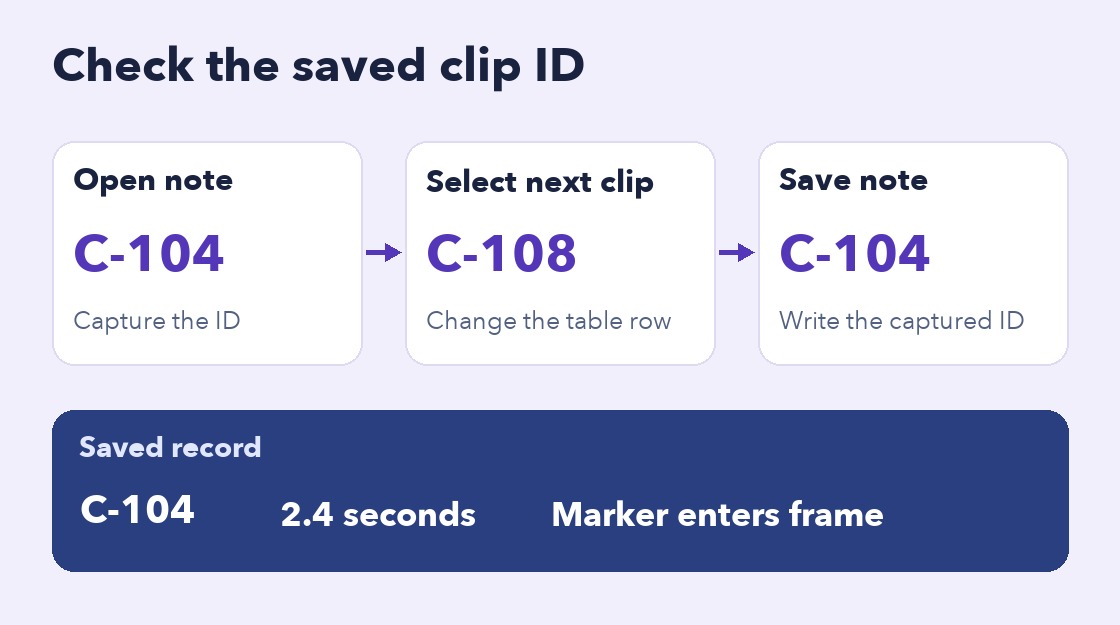
Check the clip ID in the saved record after switching rows.
Repeat the check after sorting or filtering the queue. Then open a fresh note on C-108 and leave the time blank. Verify that it creates a separate record with the second clip’s ID and a null time. Check the saved data directly each time. A success notification only tells you that a write ran.