Hi everyone,
I've been having fun running Agents in the background as I do client work. During a call last week an idea came up and after 45 mins I had this chrome extension ready (which was published today!).
Basically you can create as many workflows as you want and connect them to the extension via the category. How I will be using it:
- Articles that I find interesting and want to reference in the future: Will have a workflow that will create chunks, embeddings, tags and add them to a database so I can create a semantic search for them in the future
- Interesting places I may want to visit: I will create an agent that searches for reviews, family friendly activities, prices, nearby restaurants, flights / train routes.
- People I want to contact: When I see an interesting LinkedIn / Substack profile I will take a screenshot so that I have a workflow that adds it to a database.
It is quite simple, and it literally took me more time to make the request to the chrome store than it took the agent to build. Here's the repo by the way GitHub - MiguelOrtizUp/Screenshot-to-Retool-Workflow
This may be also a good starting point for those who want to get more familiar with workflows and how to deal with files (on that note, here's another post about how to parse files).
Any feedback is more than welcome!
Best,
Miguel
4 Likes
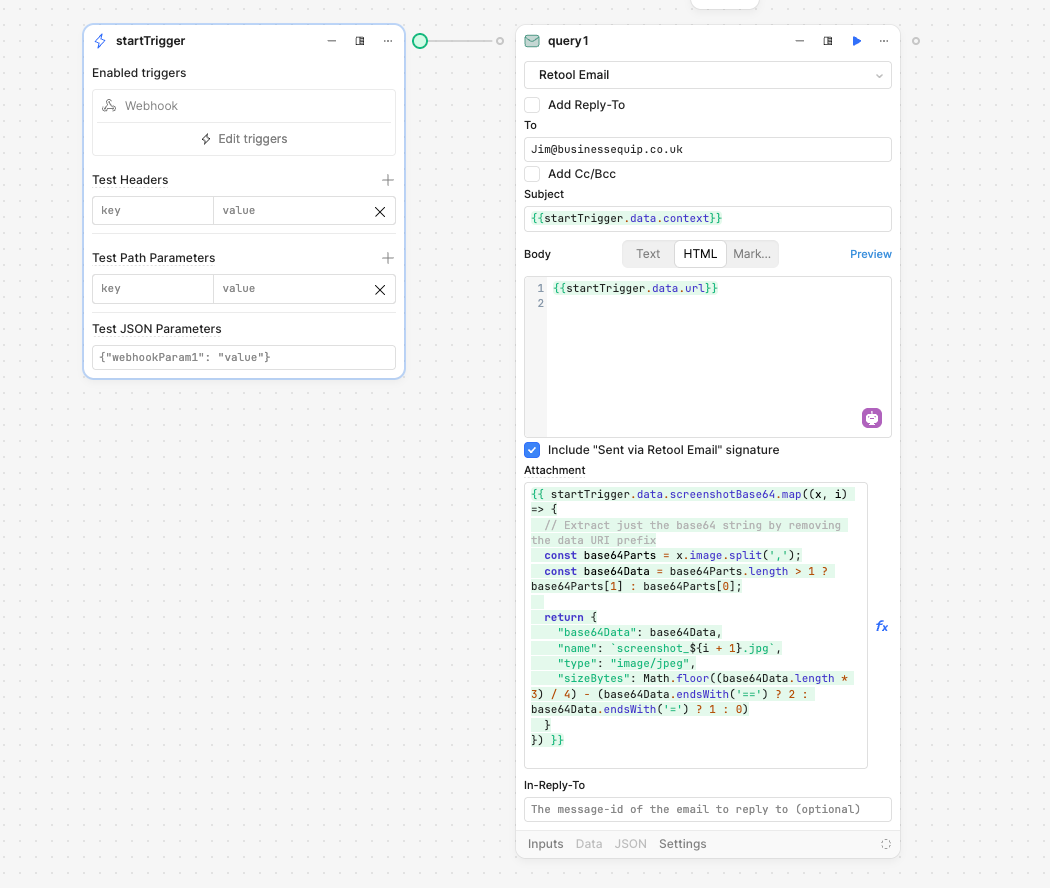
Hi Thanks for this, got it up and running I have made a wor flow to email me the png. However I am adding the {{startTrigger.data.screenshotBase64}} to the body of the email and I am just getting text in the email, how do I make it add it as a PNG?
1 Like
Hey @businessequip,
Excited to hear you're testing this and got it to work.
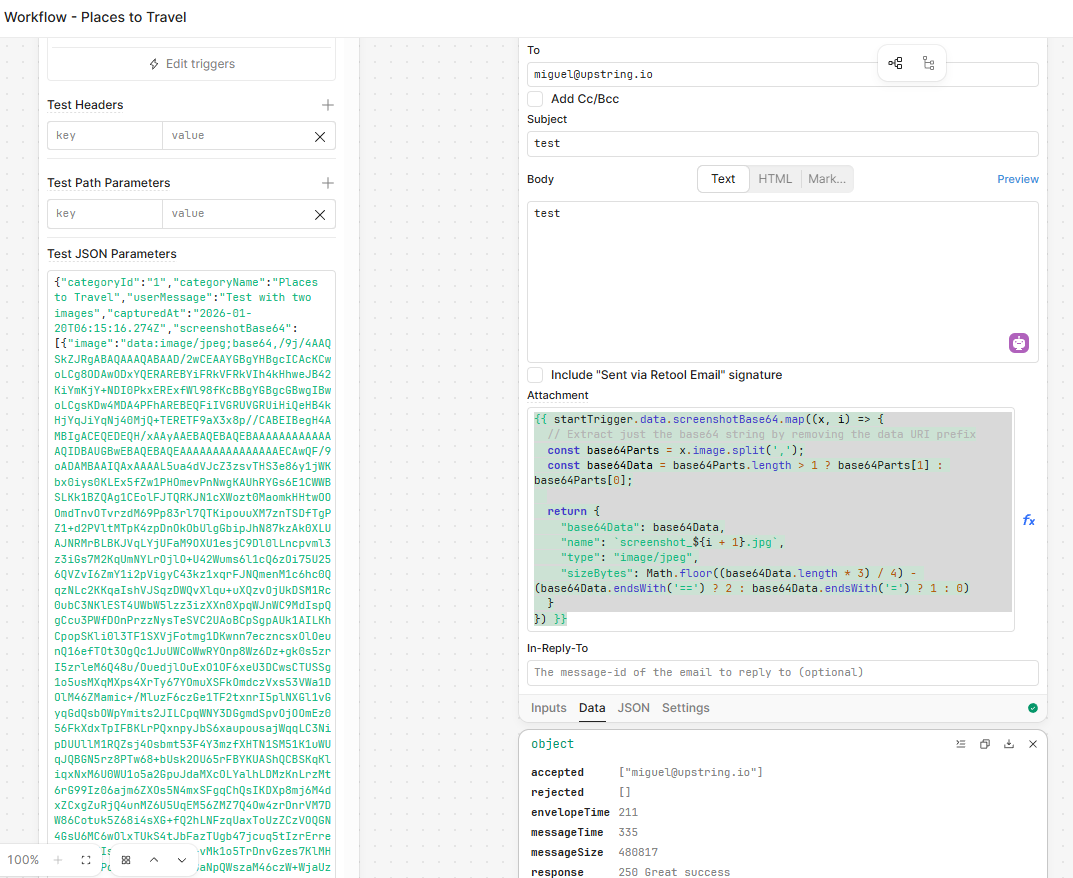
About attaching images to an email, are you using Retool's email? If so, you can add the following to the attachment section (remember to click on the FX button so you add the below code):
{{ startTrigger.data.screenshotBase64.map((x, i) => {
  // Extract just the base64 string by removing the data URI prefix
  const base64Parts = x.image.split(',');
  const base64Data = base64Parts.length > 1 ? base64Parts[1] : base64Parts[0];

  return {
    "base64Data": base64Data,
    "name": `screenshot_${i + 1}.jpg`,
    "type": "image/jpeg",
    "sizeBytes": Math.floor((base64Data.length * 3) / 4) - (base64Data.endsWith('==') ? 2 : base64Data.endsWith('=') ? 1 : 0)
  }
}) }}
This really made me think that I could update how the data is sent to the webhook so that images are dealt with more easily, I'll see if I can get that updated next week, in the meanwhile you can use this to get it work.
Best,
Miguel
1 Like
Hi Thanks
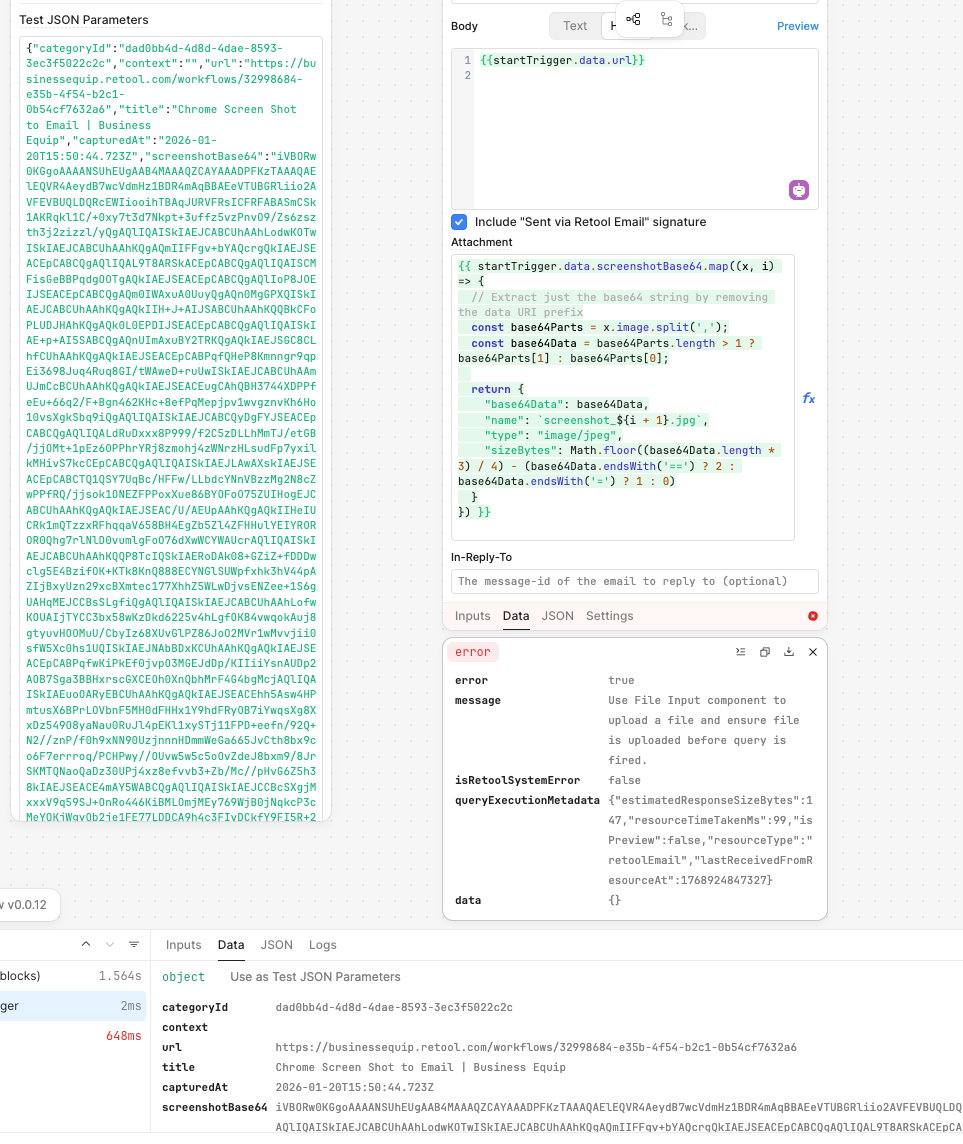
I have added the code but I am getting an error :
Error evaluating query1: Use File Input component to upload a file and ensure file is uploaded before query is fired.
Tue 2026-01-20 15:29:16
--- Failed running query: query1 ---
Tue 2026-01-20 15:29:16
--- Hit failure ---
Did you click on the FX button, it should be blue? It would be great if you can send a screenshot!
Ah, have you published your workflow version so that changes apply?
Still getting
Error evaluating query1: Use File Input component to upload a file and ensure file is uploaded before query is fired.
Tue 2026-01-20 15:50:47
--- Failed running query: query1 ---
Tue 2026-01-20 15:50:47
--- Hit failure ---
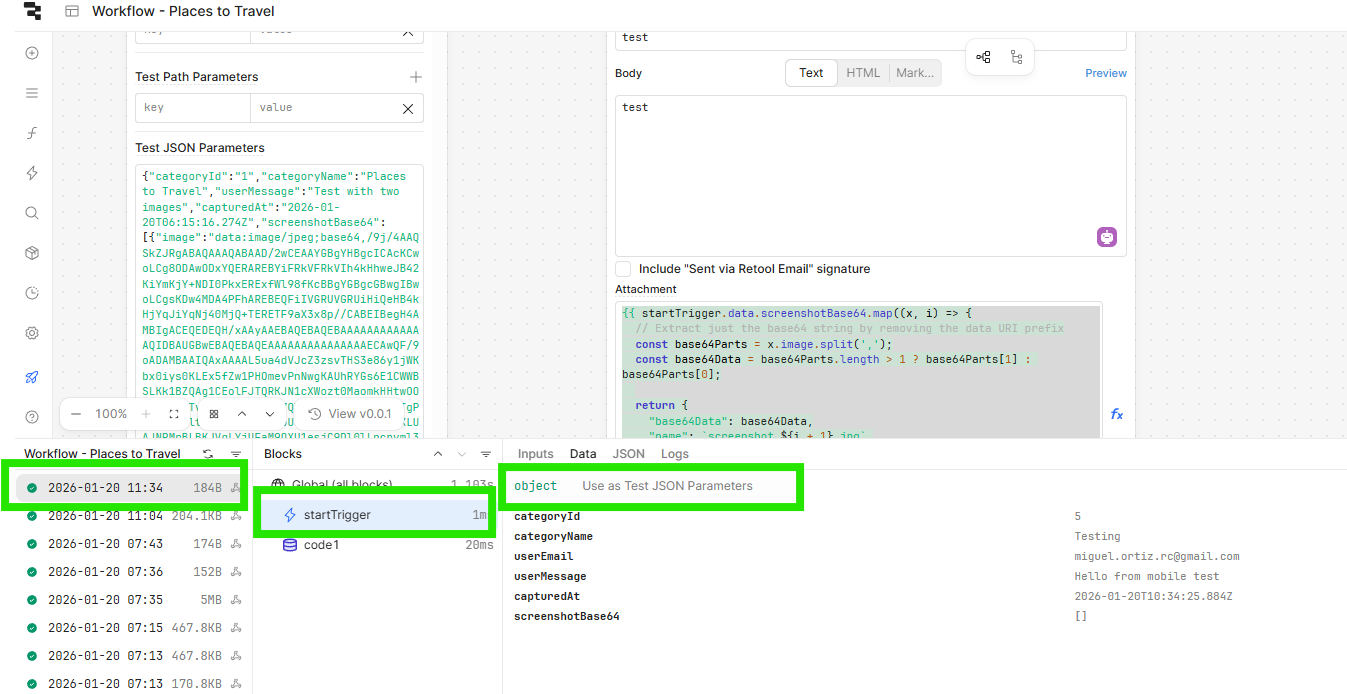
Strange..... Can you go to the logs (Run history button on the bottom left), and add the last run to the starTriggeR?
Then manually try to run the email block, let's see if you get the same error, and please do send screenshot.
Ah, so I think I'm using a developer version where I updated it t oreceive multiple screenshots, apologies for that.
Here's the corrected code:
{{
  [{
    "base64Data": startTrigger.data.screenshotBase64,
    "name": "screenshot.jpg",
    "type": "image/jpeg",
    "sizeBytes": Math.floor((startTrigger.data.screenshotBase64.length * 3) / 4) -
                 (startTrigger.data.screenshotBase64.endsWith('==') ? 2 :
                  startTrigger.data.screenshotBase64.endsWith('=') ? 1 : 0)
  }]
}}
Hey Perfect, that is awesome, thank you so much…..for your help and effort…
May be worth adding this to your documentation.
2 Likes
Update: Screenshot Extension Now Supports File Uploads & More!
Hi everyone,
Quick update on the Chrome extension I shared a few weeks ago! After using it daily and thinking about more use cases, I've added some significant improvements:
What's New:
 File Upload Support - You can now upload any file (images, PDFs, documents, CSVs, etc.) directly to your workflows, not just screenshots. Max 10MB per file.
 Screenshot Modes - Choose between capturing just the visible area (faster, default) or the entire page (full scroll capture)
 Text-Only Categories - Some workflows don't need attachments at all. Now you can create text-only categories that just send messages with metadata
 Better UX - Loading states, file previews, collapsible history, and overall smoother experience
Expanded Use Cases:
With file uploads, I'm now using it for:
- Document processing: Upload contracts/invoices → workflow extracts data → adds to database
- Image analysis: Upload product photos → AI describes/tags/categorizes them
- Bulk data ingestion: Upload CSVs → workflow validates and imports to tables
- Receipt tracking: Photo of receipt → OCR → expense tracking
The text-only mode is perfect for:
- Quick status updates to project tracking workflows
- Logging URLs I want to process later (without needing a screenshot)
- Triggering workflows based on current page context
Technical Notes:
Screenshots are now automatically compressed to JPEG (85% quality) which reduces file sizes by ~70% compared to the original PNG format. The payload structure now uses a nested file object which makes it cleaner to work with in Retool.
Check out the updated repo: GitHub - MiguelOrtizUp/Screenshot-to-Retool-Workflow
The README has examples showing how to handle the different payload types in your workflows.
Would love to hear if anyone has tried it or has ideas for other improvements!
Best,
Miguel
3 Likes