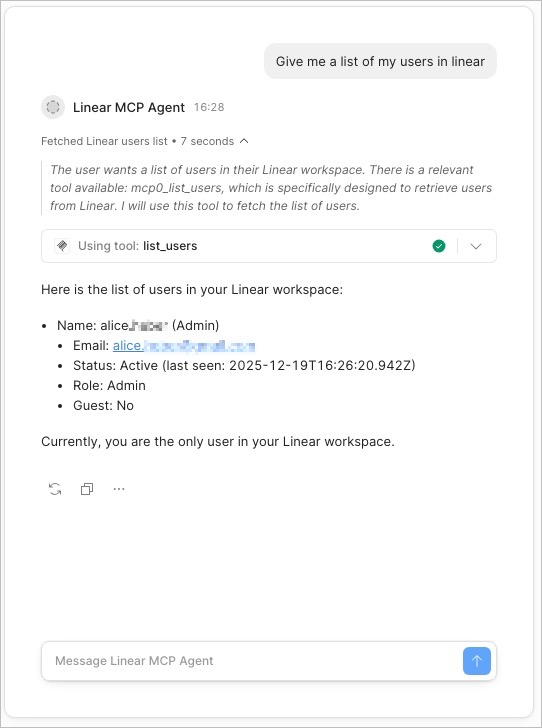
The following is an example of an MCP resource (Linear) that you can use in your Retool Agents.
Create a free linear account with with the same email address you use as your Retool user (as we will use this for Oauth)
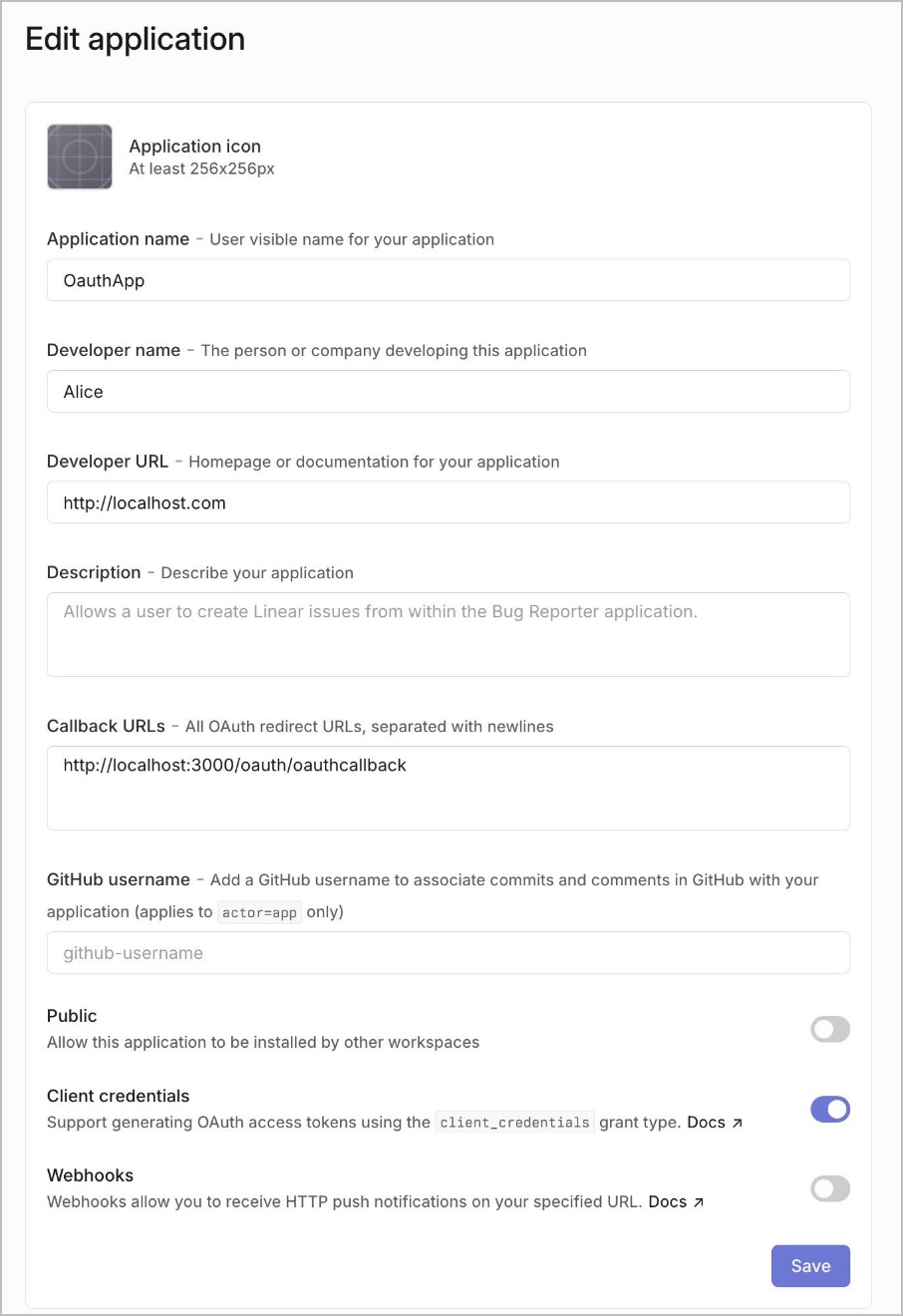
In Linear: Create your oauth app by going to settings (top left under your avatar) -> API -> Oauth Application -> new (yourWorkspaceURL/settings/api/applications/new)
Insert:
App name
Dev name
Dev URL (any)
Oauth callback URL (from the Retool resource set up page) and
enable the client credentials toggle
Your set up in Linear will look something like this:
Note when you test the connection and get error Workspace does not have access to this private application then try again in incognito - There may be issues with stale logins from the your company's linear environment (if you are testing with a free linear version).
Note that Require user confirmation before using tools will prompt for approval before the MCP resource is used, like here, and will only proceed after you click Approve