-
My goal:
What I’m trying to do-
In a Workflow: add key–value pairs to a Changeset (Object) using values from
Analyze_with_GPT.data[index].gpt_response…. -
In an App: add computed columns to table1 (so I can export a CSV with columns like Solution, Tone & Conversation, etc.).
-
-
Issue:
In the Workflow Changeset step, I don’t see the option to add a new key–value pair (the row won’t save and it’s blank)
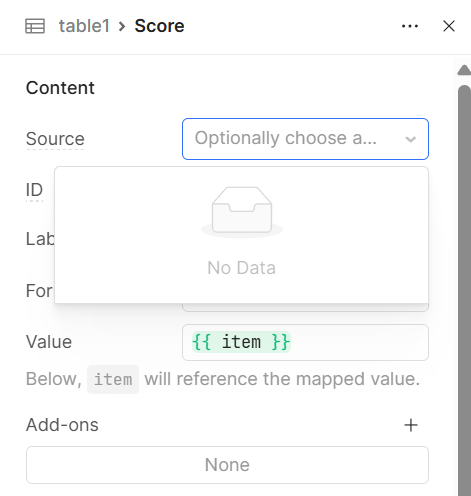
In the Table’s column editor, Source shows “no data” and I don’t get the usual Data key / Mapped value options, while my teammate does (I’m an admin). -
Steps I've taken to troubleshoot:
Since my teammate can see it, I thought it was a cache issue so cleared the cache, logged out, etc but I’m still experiencing the same. Few things:- Key names are alphanumeric + underscores (e.g.,
solution_score). - The Workflow isn’t running while I edit.
- Key names are alphanumeric + underscores (e.g.,

Hi @Giulia_Pracucci!
Glad we were able to get things sorted in Office hours 
For other users with the same questions, the solutions were as followed.
-
For adding new columns and setting their data source for a table, the query that is the source of the table's data needs to run while in edit mode for the table to be able to map over values and populate the row's source dropdown!
-
For workflows, if the data source is Retool DB, you need to go into the table and add a column manually via clicking the GUI to create a new column. If the data source is not Retool DB, you will need to go to the DB table and add a column.